Connecting with someone is only the first step to building a long-lasting relationship.
These relationships are built over time and hundreds of conversations.
We all know the power of a well-written message; it can have a huge impact on the person we are conversing with if timed right.
Crafting a powerful message takes time, trial and error, but when we find it we tend to reuse it all the time.
In this article, we will help you build your repertoire of LinkedIn message templates and prepare you for every situation.
But first, let’s talk about how LeadDelta can help you create and manage your message templates.
How To Create LinkedIn Message Templates In LeadDelta
Stop keeping your message templates scattered all over your computer and having to look for them every time you want to use them.
LeadDelta allows you to create hundreds of LinkedIn message templates and use them on the fly.
There are two ways to create message templates in LeadDelta.
The first one involves the “Templates” tab.
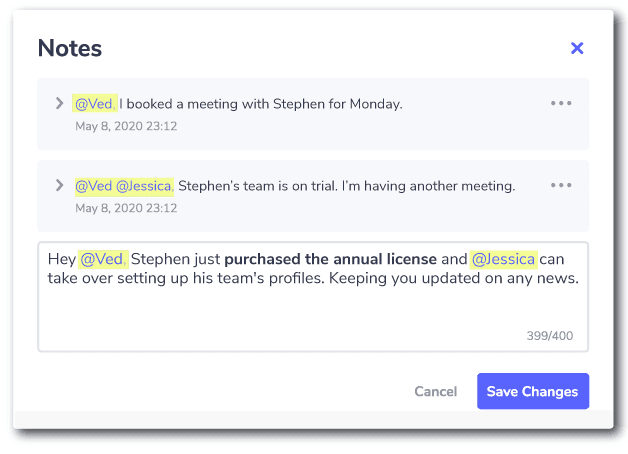
After clicking on this tab, you will get an overview of all the message templates you have made with the ability to edit them and organize them the way you want.
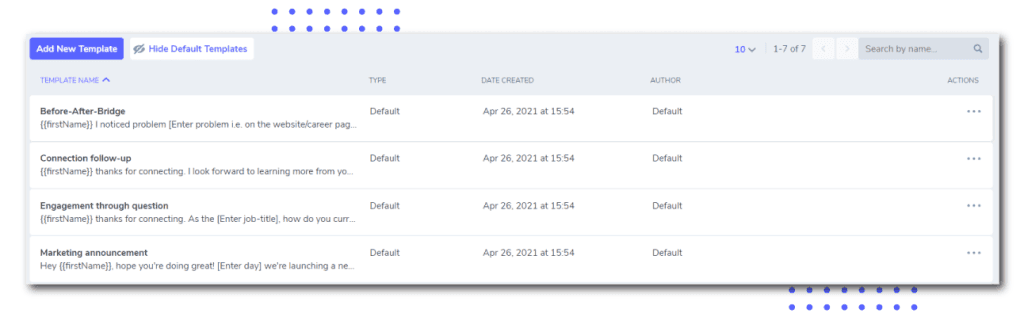
By clicking on “Add New Template,” the template builder will pop up letting you write your message and name the template.
A neat feature of LeadDelta templates is personalized placeholders: “First Name,” “Last Name,” and “Company.”
Adding these placeholders will automatically detect and change the appropriate property to fit your connection’s information.
The other way to create message templates is directly through the smart inbox by clicking on the save icon.
Note: LeadDelta comes equipped with seven pre-made templates you can try out.

How To Use Message Templates In LeadDelta
Once you have built yourself a database of templates, you can start using them inside LeadDelta.
You can use them in two ways.
While conversing with a connection through the smart inbox, you can pull up your template database and select a message template you want to send.

The other way is using message templates for messaging multiple connections, otherwise known as bulk messaging.
While in the connections tab, you can select multiple connections you want to message and click “Message,” to select a template you want to send.
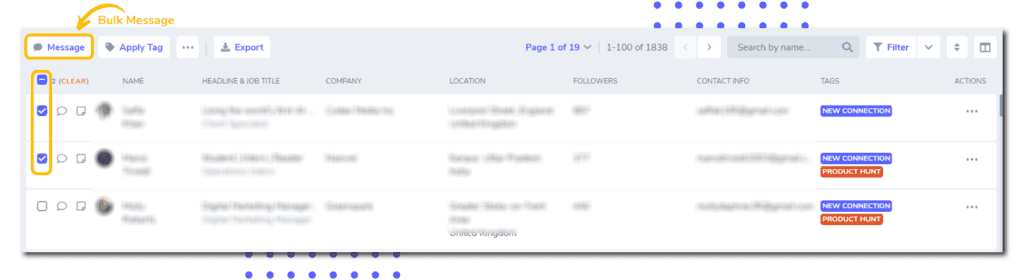
Your message will be sent to all the connections you selected.
This is super useful when doing marketing campaigns, announcements, or many other use cases.
Very important to keep in mind: You can always edit your message before sending it, and this will not affect the original template.
16 Must Have LinkedIn Message Templates
Now that you know how to make message templates, let’s prepare you for common situations.
You can copy these templates into your LeadDelta, but be sure to edit them to your liking before sending them.
Connection Request
There are many ways you could approach a person you find interesting, with the goal of them accepting your connection request.
The idea is to show your intentions and why you want to connect with them.
Interesting Post
“Hi {firstName}, I just read your post about [Topic], and I’ve got a question. [Questio About The Post]? I’m interested to hear your thought and opinions. [Your Name]”
Interesting Comment
“Hi {firstName}, your comment on [Name Of The Post/Creator] didn’t go unnoticed. I’m interested in [Topic] too. Let’s connect and discuss; I’d love to hear your thoughts. [Your Name].”
Interesting Profile
“Hi {firstName}, I just came across your profile, and [What You Found Interesting] caught my eye. I’m very interested in [Topic]. I have a lot of experience in [Topic/Position] and would love to get in touch with you. [Your Name]”
Starting A Conversation With A Connection
Try to find something in common or ask questions to start a conversation.
The goal is to get to know them better and hold a long conversation.
Formal Introduction
“Hello {firstName}, thanks for connecting. I wanted to take a moment and introduce myself. I’m [Your Name], a [Occupation/Position] in [Company Name]. Over my [X] years of experience in [Field], [Continuation]. Thank you for taking the time to read my message. I’m looking forward to talking to you.”
Classic Connection Accept
“Hey {firstName}, thanks for connecting. I’m looking forward to learning more from you about [Topic]. What do you think about [Topic]?”
Visited My Profile
“Hey {firstName}, I noticed you visited my profile. It’s been a while since we connected. Is there a particular reason you dropped by? Let’s reconnect. Cheers!
Saw Their Comment/Post
“Hey {firstName}, I just saw your post on [Topic] and found it very interesting. It’s a shame we never had a chance to talk so I thought I’d drop by and say Hi. [Question About Post]?”
Follow-Up
Don’t be too pushy; the point is to get their attention and restart the conversation.
Most of the time, they didn’t ignore you; they just forgot to answer.
Classic Follow-Up
“Hey {firstName}, just a quick follow-up as I haven’t heard back from you yet. Maybe the message got lost in your inbox. [Restart The Question]”
Follow-Up After Sending Resources
“Hi {firstName}, just checking if you had the opportunity to read the [Article/Blog/Ebook] I sent you. Did you find it useful for [Value It Offers]? It would be great to hear your thoughts.”
Introductions/Recommendation
The point of LinkedIn is networking, and what better way to connect to people than through your connections?
Introduction Request
“Hey {firstName}, I noticed you are connected to [Name], and I’m very interested in meeting them. I am impressed with [Name]’s background in [Field]. I would greatly appreciate it if you could introduce us. Thank you in advance for your help, and please let me know if there is anything I can do for you.”
Recommendation Request
“Hello {firstName}, I hope you are doing well. I noticed you are connected to [Name]. I just started/launched [Service/Product] and think it would be of great value to [Name] and their business. If they might be interested, would you be willing to introduce us or recommend my [Services/Product] to them? I know that recommendations are a big ask, so please let me know if you would be okay with this. Thank you in advance.”
Un-Read/Replied Message
It happens to the best of us; we sometimes leave a message unopened for months.
The best way to go about this is not to explain why you didn’t read/reply, but to let them know you saw it and want to continue the conversation.
Enthusiastic
“Hey {first name}, I am going over my messages. Yikes! It’s been [Time] since you messaged me Hope you are well! What are you working on? The reply is delayed, but the enthusiasm is forever, I promise. See you around on LinkedIn, my friend.”
Ghosting
“Hey {firstNme}, so sorry for ghosting you, I hope you weren’t too spooked, all jokes aside [Answer Their Message]”
Thank You
Using thank you templates is a great way to develop deeper relationships with your connections and show your gratitude.
Significantly Helped You
“Hey {firstName}, I wanted to take a moment and thank you for [Their Action]. Your expertise and guidance have been invaluable, and I truly appreciate the time and effort you dedicated to helping me. Please, anytime you need help with [Topic] let me know, and I’ll be sure to lend a helping hand.”
Birthday Thank You
“Hey {firstName}, thank you for wishing me a happy birthday! Your message brightened my day and put a smile on my face. I’m grateful to have friends like you to show they care. Let’s catch up sometime?”
Valuable Member Of Your Audience
“Hey {firstName}, I wanted to take a moment to personally thank you for your support of my content. Your engagement and, comments mean the world to me and are the key reason why I continue to create and share content. It is truly gratifying to see that my message is resonating with you. Once again, thank you for your support.”
Conclusion
LinkedIn message templates are an easy way to improve your communication and workflow on LinkedIn.
By using LeadDelta’s message templates feature, you can create and manage templates from connection requests to event invitations to requests for recommendations.