
There are many reasons you might want to research another company’s employees.
You could be a sales representative looking for leads from a target company, a recruiter trying to research competitors, or even a marketer exploring competitor data.
Whatever the reason, there’s useful information in finding out who exactly works for a certain company.
In this guide, we are exploring how you can find employees of any company and what you can do with this information.
Let’s get started.
How to See Company Employees Using LinkedIn
If you’ve found a target company, you would want to do more research by going through their employees, then you’re in luck.
LinkedIn gives you an easy way to search through a company’s current and former employees using its search options.
How to Find Current Employees of a Company on LinkedIn
The simplest way to find everyone currently working for a company is through their company page.
- Click on a target company page.
- Click on the “# employees” link in the company bio.
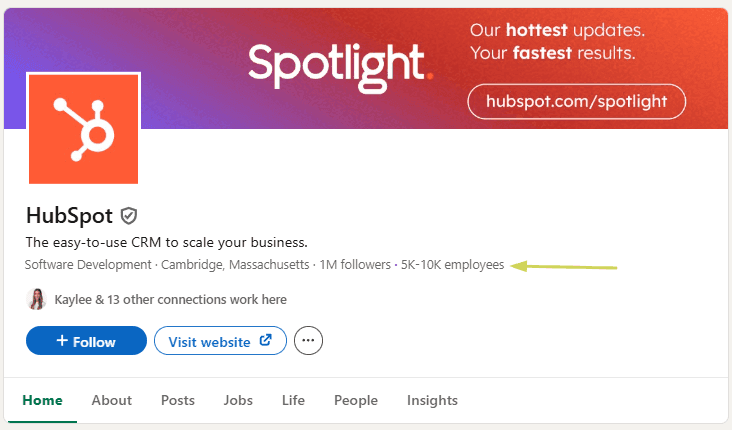
- Utilize filters to find your target profiles.

This option gives you a list view of every current company employee, after which you can connect with them or do more research.
But what if you want to find former employees?
How To Find Former Employees of a Company on LinkedIn
Since these profiles don’t register as current employees, you won’t be able to find them on company pages.
Although the process is a bit different, it’s still pretty easy.
- Click on LinkedIn’s search bar and hit Enter.
- Filter the search to show only people.

- Open “All filters” and scroll down until you see “Past company”.
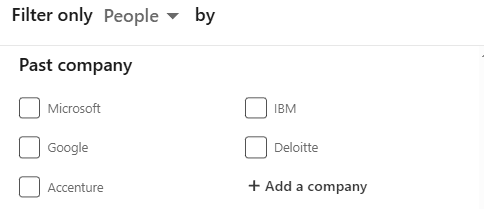
- Click on “+ Add a company” and input the company name.
- Narrow your search by using more filters and click “Show results”.
This process will give you a list of people who listed this company in the experience section on their profile.
Know that this list can get pretty big depending on the size and age of the company, so it’s best to narrow down your search using LinkedIn filters.
How to Find a List of Employees at a Company – A Better Way
Knowing how to find company employees on LinkedIn is great for your research, but it’s very limiting.
You aren’t getting all the information you need, and you are provided with static information you can’t do anything useful with.
There’s a much better way to do this with the LeadDelta Sidebar.
The second you click on a company page, the Sidebar will open in the right corner.
Here you will get a glimpse of all current company employees with the ability to “Add Profiles to LeadDelta” by clicking on the + button. There is also an option to add in bulk.
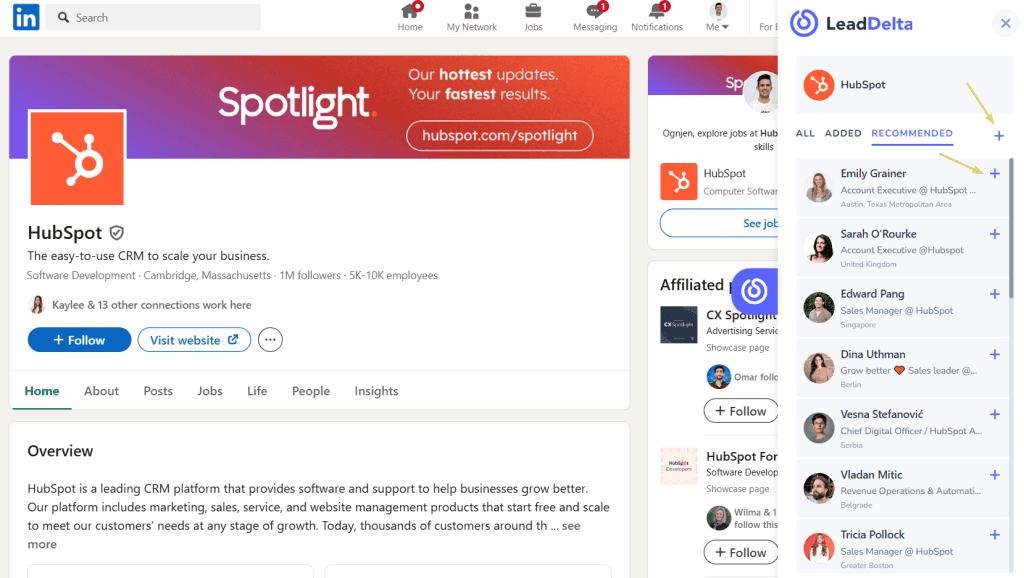
Also, any time you use the LinkedIn search filter for employee search, the Sidebar gets instantly updated with the new list.
Okay, so the Sidebar gives you a better way of viewing and filtering company employees, so?
Remember the “Add to LeadDelta” button?
By simply clicking on the + button of a LinkedIn profile, they will be imported into your LeadDelta, and no, they don’t have to be your 1st-degree connections.
What does this mean?
Managing Imported Company Employees from LinkedIn
By importing LinkedIn users into LeadDelta they will be stored in a CRM-like database view with the option to filter them by 15+ data points and get contact data.
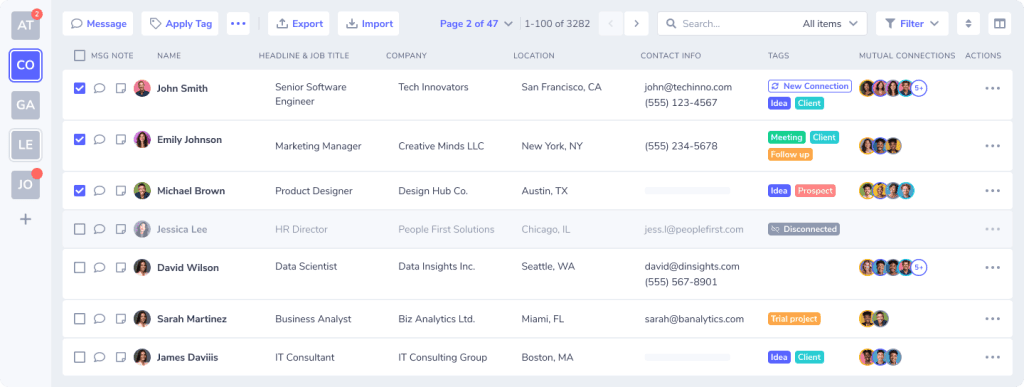
New contacts will also be marked with Auto-Tags as soon as they enter your LeadDelta.
This means you’ll be easily able to differentiate those who are your 1st-degree connections from those who are imported via Sidebar.
These Auto Tags will be visible in the CRM view and inside your Tag menu, where you can easily see how many new ones you added and get an overview of all your tagged connections.
Get contact data from employees from LinkedIn
Instead of just looking at company employees, importing gives you a way to do something with them.
LeadDelta allows you to get better contact data from your imported lists.
And it’s super easy. Simply filter the contacts and choose whether you want to get personal emails, business emails, or find phone numbers from LinkedIn contacts.
Here’s a video showing just how easy the process is:
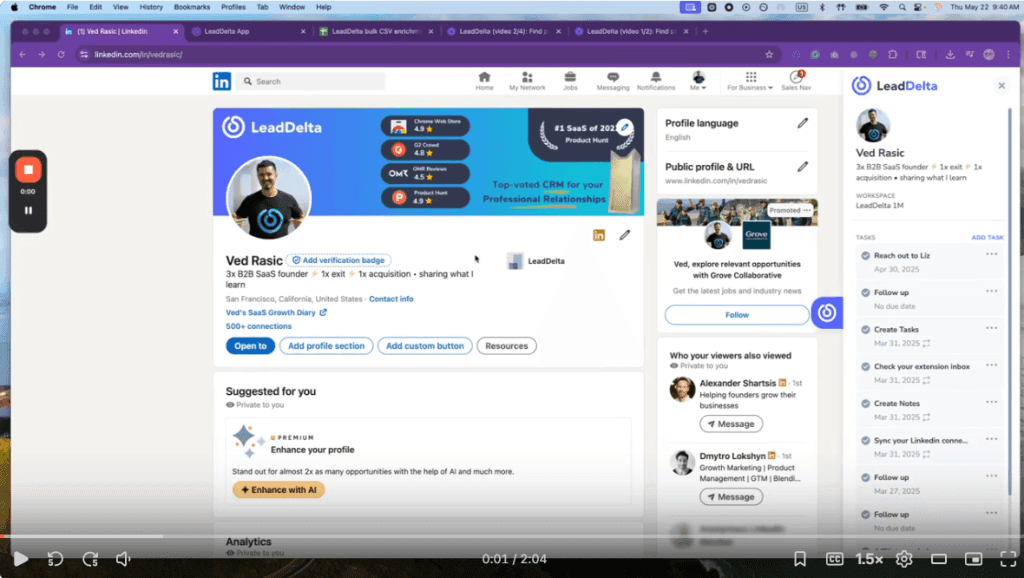
Read more about LeadDelta Enrichment here.
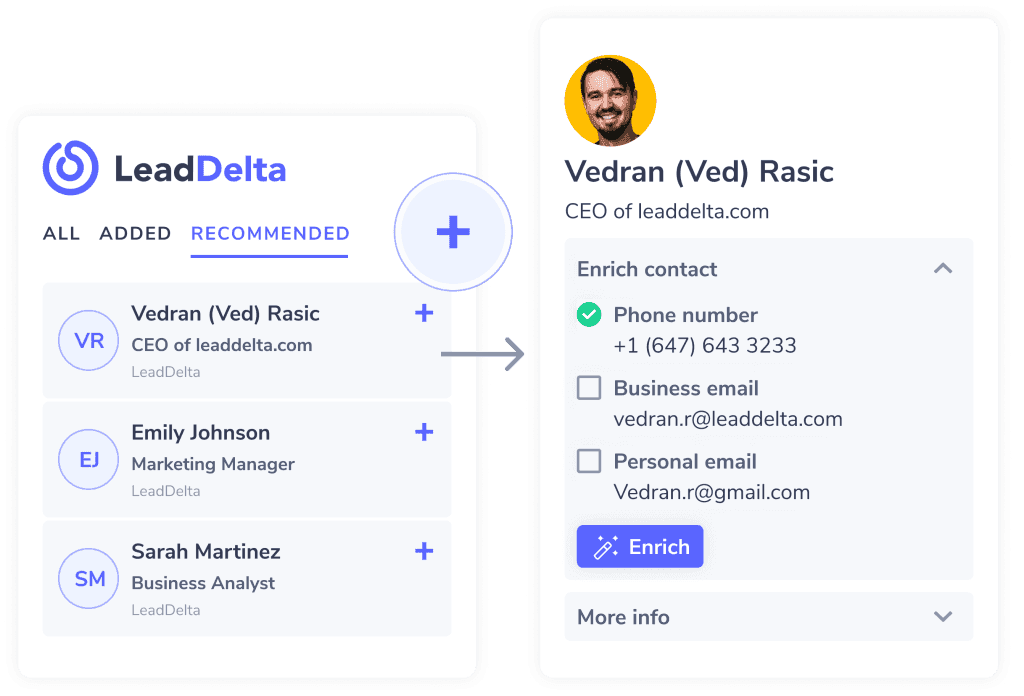
But it doesn’t stop there. You can also use LeadDelta to:
- Export lists of company employees
- Add Notes about users
- Collaborate with your team
- Integrate LeadDelta with your sales workflow
Frequently Asked Questions (FAQs)
How can I find employees without visiting the company’s LinkedIn page?
Use LinkedIn’s search bar directly, applying relevant filters for efficient results.
Is LinkedIn’s employee count accurate?
It indicates how many LinkedIn users list the company as their employer, which might differ from actual numbers.
Can I message employees directly?
Yes, if already connected. Otherwise, use LinkedIn Premium’s InMail or send a connection request.
Can I filter by job title or department?
Absolutely, use specific keywords for job titles or departments in your search.
Do employees see if I view their profiles?
Yes, unless you change your privacy settings to browse anonymously.
Can I obtain contact information beyond LinkedIn?
Some profiles include contact information. For more contact info on personal emails, business emails, and phone numbers, you can use the LeadDelta Enrichment feature.
Conclusion
Knowing who works where is very important for any business and industry, especially if you are researching your competitors.
Now that you understand how to find employees of a company, you will be able to do much better competitive research and get more reliable data.
Not only that, you will be able to utilize company employees by using LeadDelta’s network management features.