
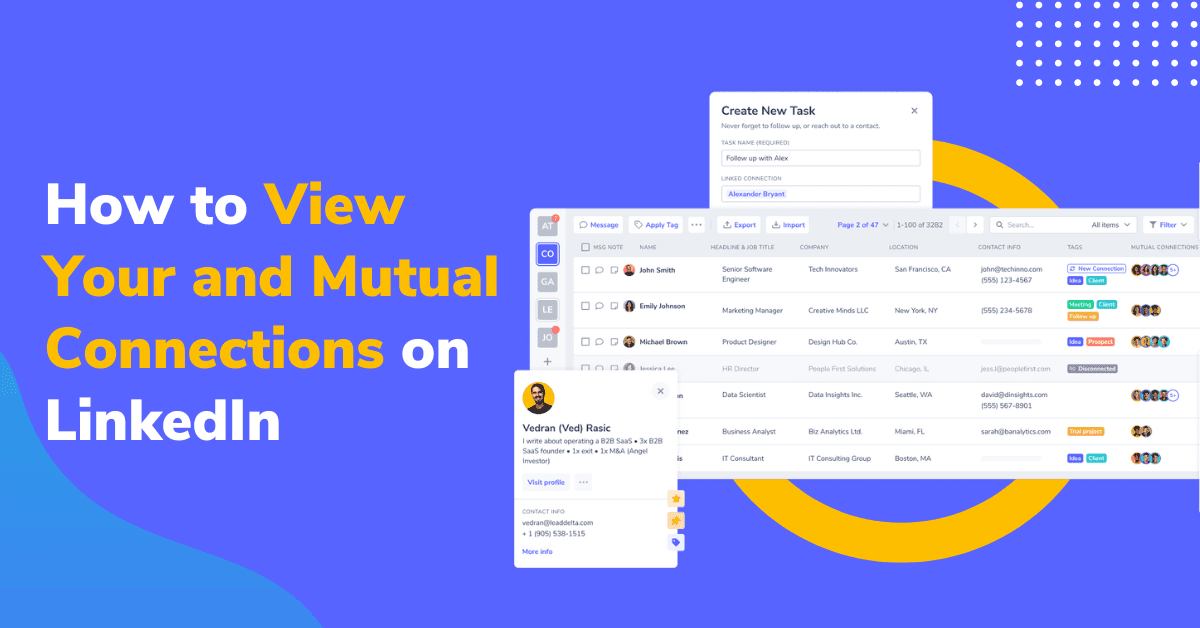
There are many benefits to having an extensive LinkedIn network.
From increasing the reach of your content to improving LinkedIn search results and boosting profile views.
However, while having 500+ connections seems fantastic, scrolling through the ever-loading list of names and faces isn’t nearly as appealing.
That’s why it’s essential to know how to view connections on LinkedIn more efficiently and quickly search through your network.
Viewing Connections on LinkedIn
Here’s how to view your connections on LinkedIn directly:
- Click on the “My Network” tab on the LinkedIn navigation bar.
- On the left rail, click on “Connections” to see the list of your connections.
- Click on the “Search with filters” button
Once you access your connections, you can utilize LinkedIn’s filters to search for connections in specific locations, industries, and companies.

To access LinkedIn’s advanced filters click on the “All filters” button which will give you more options for searching for specific connections.
You can filter connections by Job Title, Language, Company, and services they provide, or search for a specific person by Name and Last Name.
This is as far as LinkedIn allows you to view LinkedIn connections, and you would be right if you said that this isn’t enough.
Why do I Need a Better Way to View Connections?
There are several reasons you need a better and more efficient way to view your connections:
- Access more information about your connections
- Save time searching for connections
- See mutual connections between you and your team
- Organize connections easily
Having a better view of your connections is the first step to extracting value and utilizing them to grow.
That’s where LeadDelta comes in to solve the problem.
Why LeadDelta?
LeadDelta is a networking CRM that helps individuals and teams organize their connections.
It provides users with a clearer view of their contacts, and LinkedIn networks, presented in a lightweight CRM table.
It offers useful features such as:
- Syncing all individual and team connections into one view
- Simple organization, search, and 15+ data filters
- Option to export all connection information
- Bulk unfollow actions and mass messaging with templates
- Reliable network data analysis
- Better messaging experience with the smart inbox
And many more.
But how does LeadDelta provide you with a better way to view your LinkedIn connections?
With its connection view table.
How to View Your LinkedIn Connections?
To get started with LeadDelta’s connection view simply log in and sync your LinkedIn connections.
After syncing, all of your connections will be presented in a simple CRM-like table view.
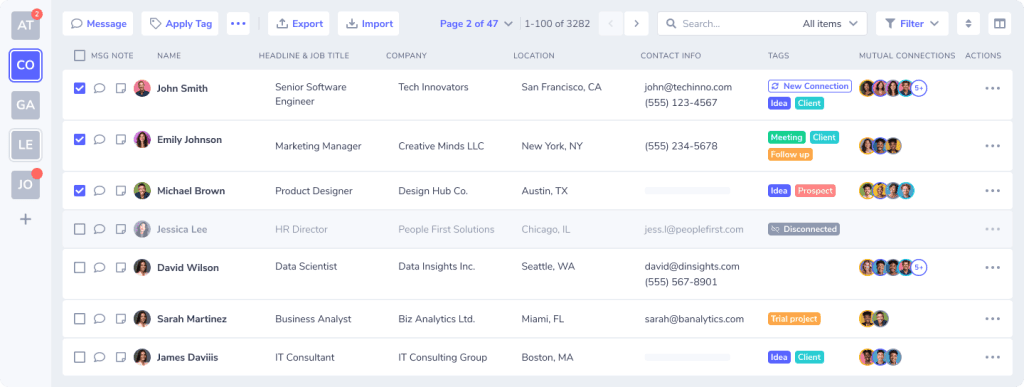
As you can see all important information about your connections is easily viewable without you needing to check their profiles manually.
LeadDelta pulls 15+ data points about your connections that LinkedIn doesn’t provide you with and allows you to customize which information you want to see.
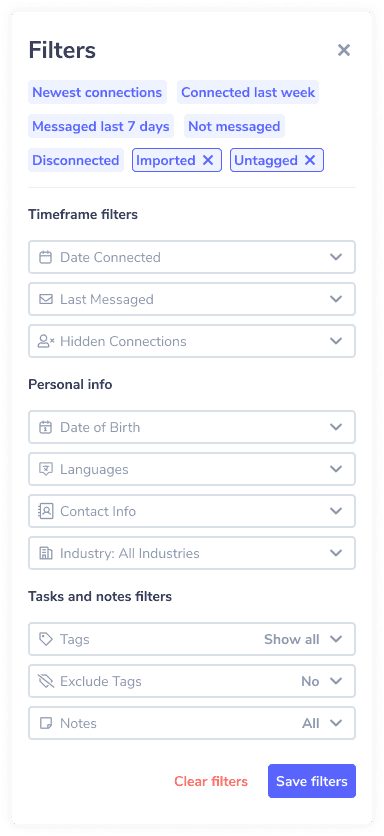
You can then filter your network on a much higher level.
Use filters like: Industry, Location, Company, Name, Date of birth, Job title, When you connected, and even some special filters like Last time you had a conversation with them, Number of followers, or filter by Tags and Notes you applied to connections.
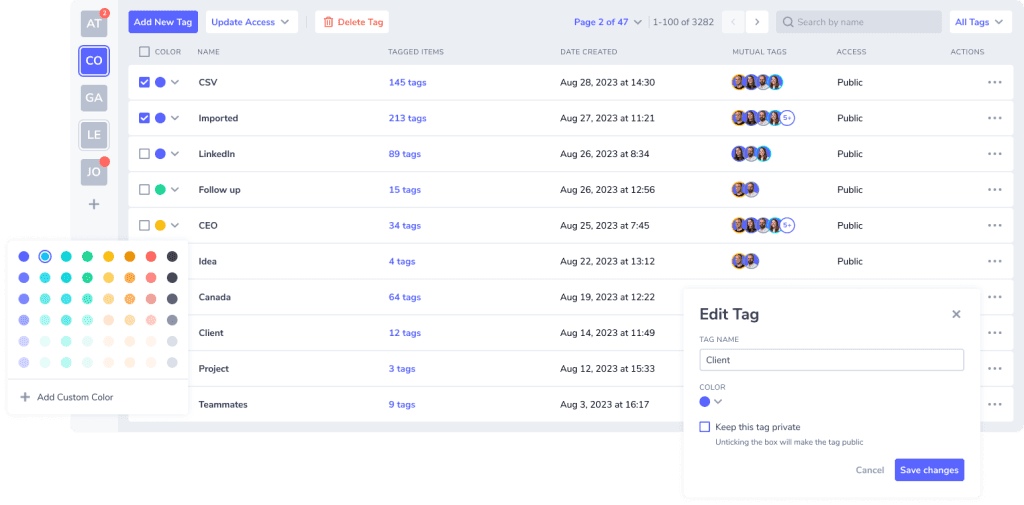
But the customization doesn’t end there. You can organize your connections in any way you want by utilizing LeadDelta Tags.
Combine these filters to find the exact connections you are looking for. Once filtered you can export these connections.
If you are using the same filters often, LeadDelta gives you the option to Save Filters and reuse them.
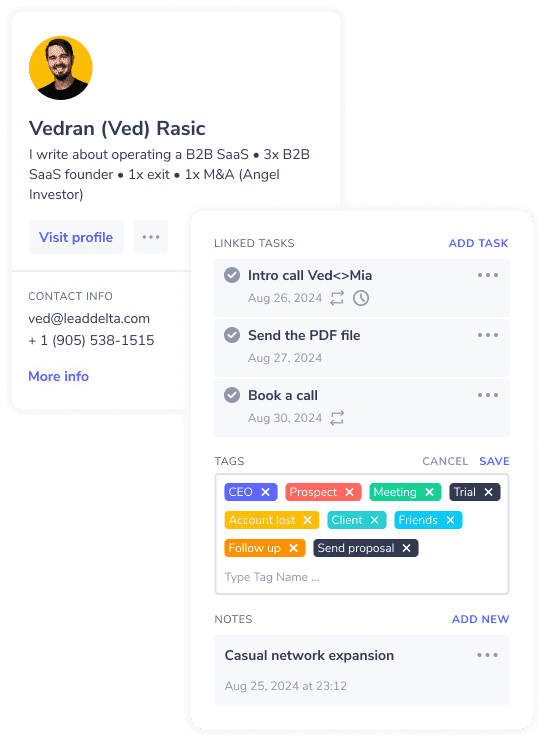
A bonus to using the connection view is that all the information about your connections will be available to see when on a connection’s profile with the LeadDelta Sidebar.
How to See Mutual Connections on LinkedIn?
While having a better view of your own LinkedIn connections is great, you might also want to see the mutual LinkedIn connections you share with your team.
With LeadDelta you can merge your network with the network of your colleagues into one combined view.
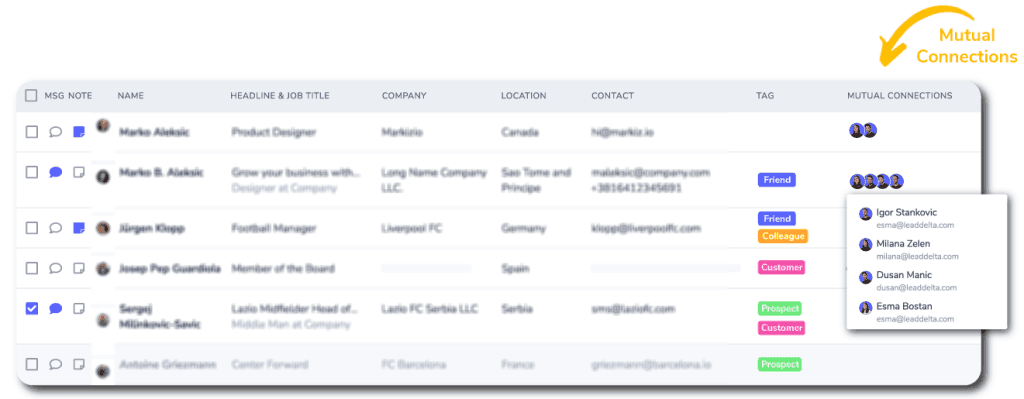
As you scroll through the team connection table, you will be able to see which of your colleagues has specific connections in their network.
This will help you see shared connections on LinkedIn in your team.
And if you want to see exactly who your colleagues are connected to or see combinations of mutual connections you can filter the combined network only for the connections one of your colleagues is connected to, or two, or connections your whole team shares.
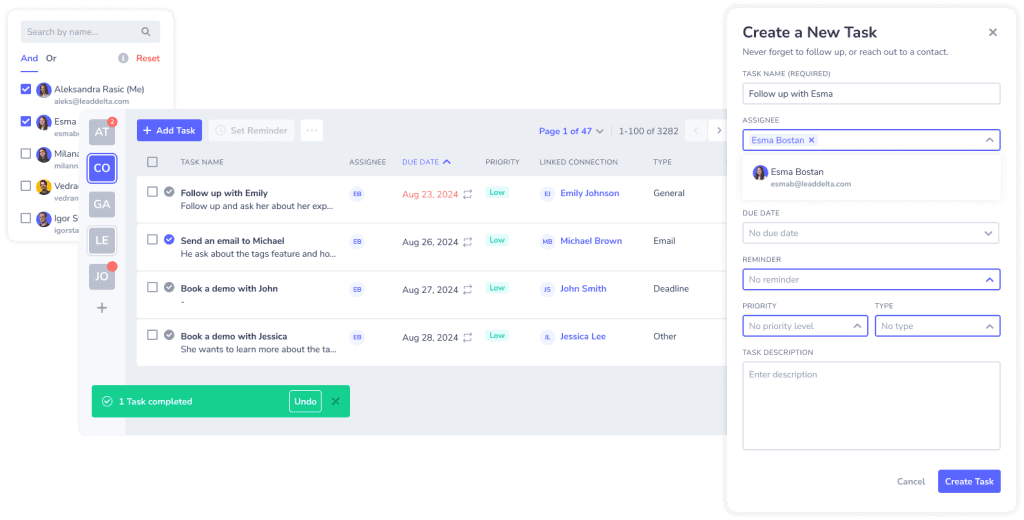
LeadDelta also allows you to organize them with Tags and Notes as well as set Tasks and Reminders for your teammates.
With a better network view, your team will be ready to take on any challenge with the power of networking.
Many teams are already utilizing LeadDelta through referral networking and collaborative selling.
Conclusion
Having a huge network is great for finding new opportunities, but without an efficient way to traverse it, it’s of no benefit.
With LeadDelta’s numerous features, you will have an organized network, a better inbox experience, and an efficient way to collaborate with your team.