
Are you actively creating content on LinkedIn to gain more followers?
Just think about how much value you can extract from your follower base to convert new sales, meet new people, partner up, or improve your content.
The secret to a successful creator career is optimal follower tracking, engagement, and management.
This guide will help you get on top of your LinkedIn followers and manage them effectively.
Let’s start with the basics.
How To See Your Followers On LinkedIn?
LinkedIn gives you a convenient way to see a list of your followers.
- Click on the “My Network” icon at the top of your LinkedIn homepage.
- In the left-hand menu, select “Followers” to view who follows you.
You will be able to see everyone who follows you and everyone you are following.
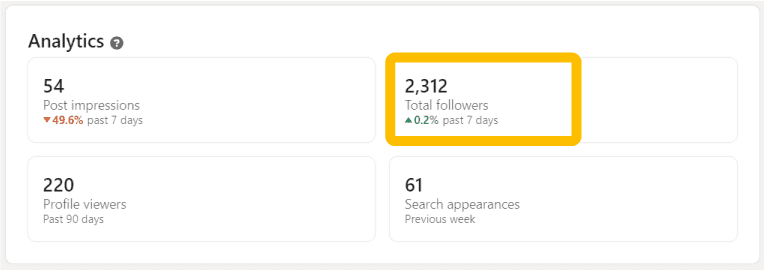
You can even take it a step further and analyze your follower gain over time.
Here’s how:
- While on your profile, click “Analytics – Show all Analytics”
- Click on the “Total Followers” tab in the analytics section.
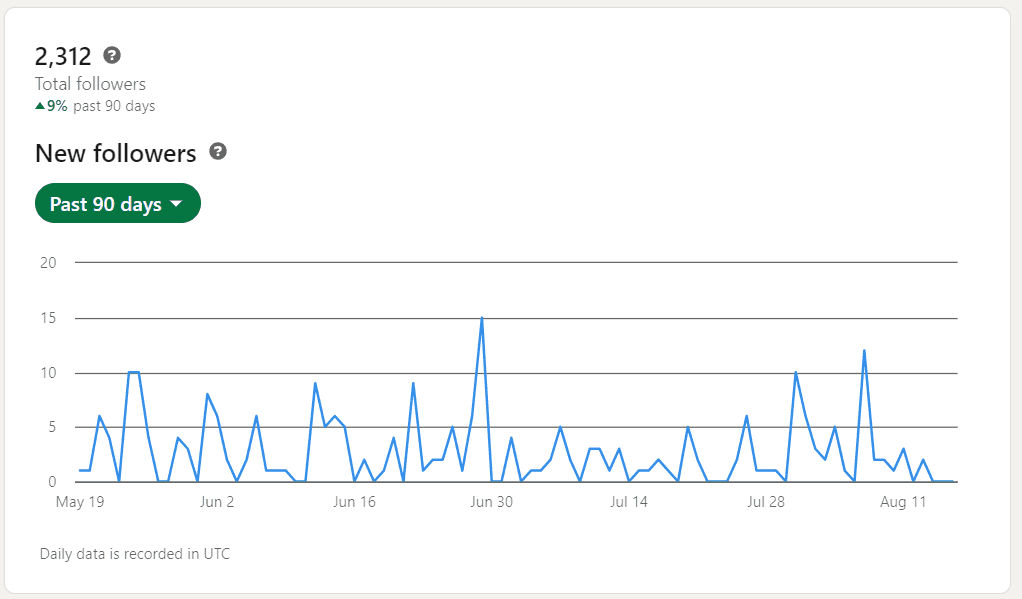
You will get a timeline of the number of followers you gained each day, with the option to filter it by time frame.
It also shows you the breakdown of your followers based on Job Title, Location, Industry, Seniority, Company Size, and Company.
With follower analytics, you get great insight into how your content and profile are converting people into followers, which particular posts gained you the most followers and many more trends.
How To See Someone’s Followers On LinkedIn?
There are many reasons to see someone’s followers.
They could be a bigger creator in your niche and you want to see who’s following them, or a competitor, or even find people with similar interest in creators like you.
Here’s how to see anyone’s followers:
- Click on the search bar and hit enter.

- Select the “People” filter in the search tab.

- Click on “All Filters” and find the “Followers of” option.
- Input the name of the creator whose followers you are looking for and click on “Show Results”.
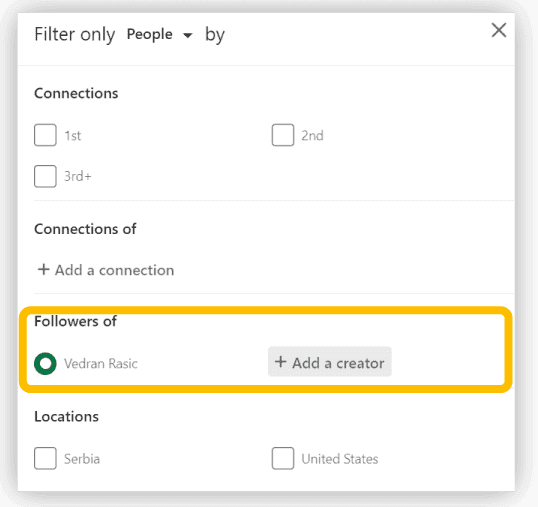
LinkedIn will give you a list of all of their followers with the option to filter them even more.
Manage LinkedIn Followers (Yours or Competitor’s)
Let’s face it, LinkedIn is great at giving you information about who is following you, but it stops there.
There’s no reliable way to manage followers, you can only see them and perform basic actions.
There are many reasons to manage your and competitors’ followers:
- Filtering followers for specific people that you can reach out to
- Separating followers into different categories
- Tracking your social selling pipeline
- Creating marketing campaigns out of the followers’ network
- Gaining more personal information
- Collaborating with your sales/marketing team
And many more based on your specific needs.
While LinkedIn doesn’t give you the option to manage your followers, LeadDelta does.
Add and Enrich Your Followers – or Your Competitor’s – in LeadDelta
- While in LinkedIn’s search, filter it by “People”.
- Open advanced filters and enter your name in the “Followers of” option.
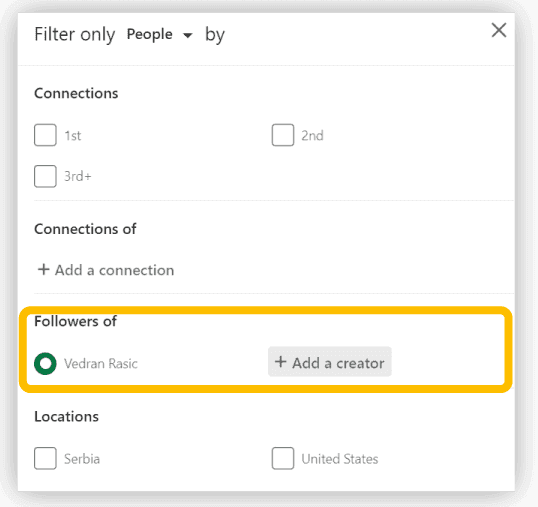
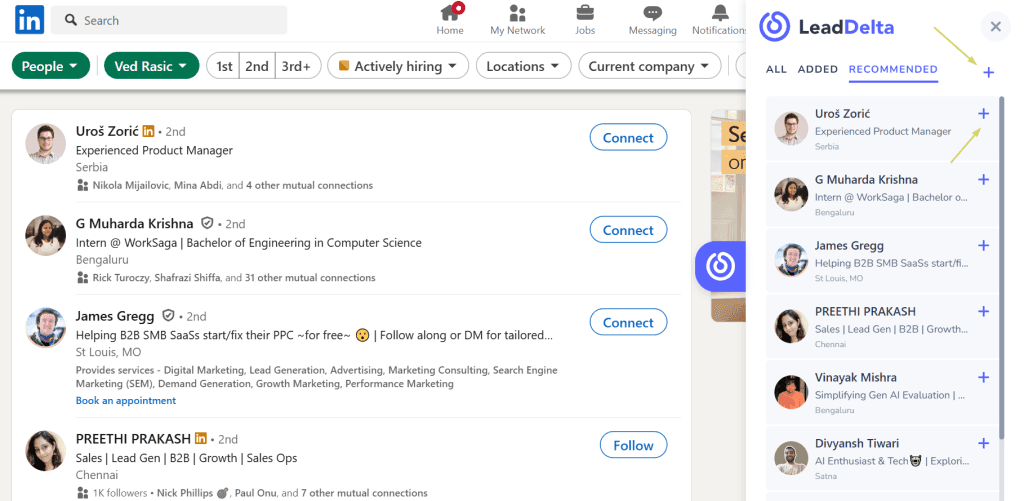
- You will get a list of your or other people’s followers (depending on what you are looking for) and the LeadDelta Sidebar will open on the right side.
- Import followers one by one or in bulk by clicking on the “+” button.
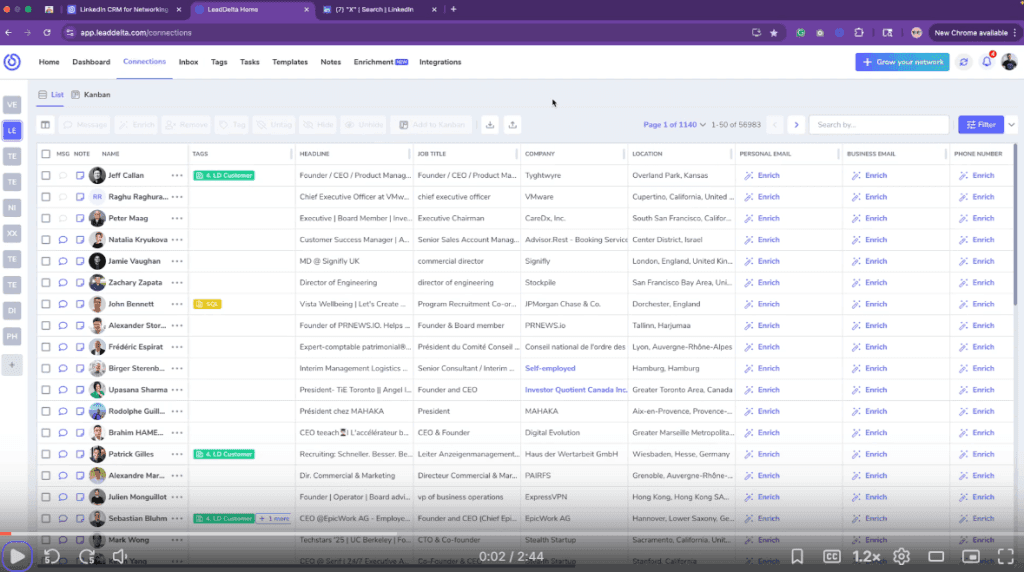
Once you add them to LeadDelta, they will appear inside your Connections tab. Here, it’s super easy to filter and segment them and enrich to get their personal emails, business emails, and phone numbers. Check out this video to learn more:
Tag LinkedIn Followers
Once you have imported followers, the fun part can begin.
You can easily filter them using the Auto Tag – Imported, which will show you the list of connections you added using the LeadDelta Sidebar.
Then, you can create custom Tags for different uses.
For example, if you are building a sales pipeline, you can create Tags and track where your followers are in the pipeline.
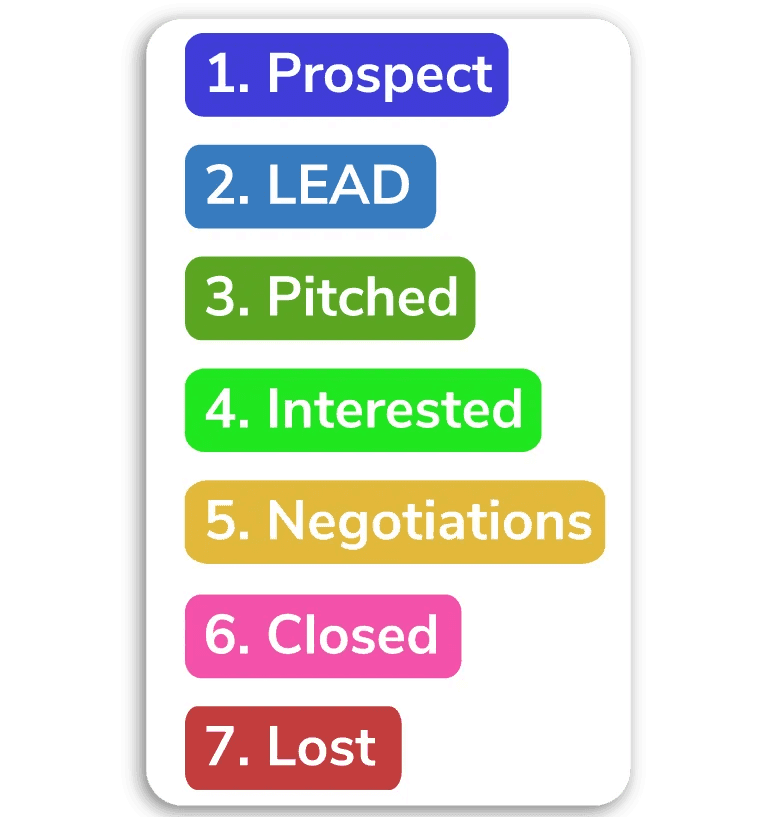
There’s no limit to what you can do with Tags.
Filter LinkedIn Followers
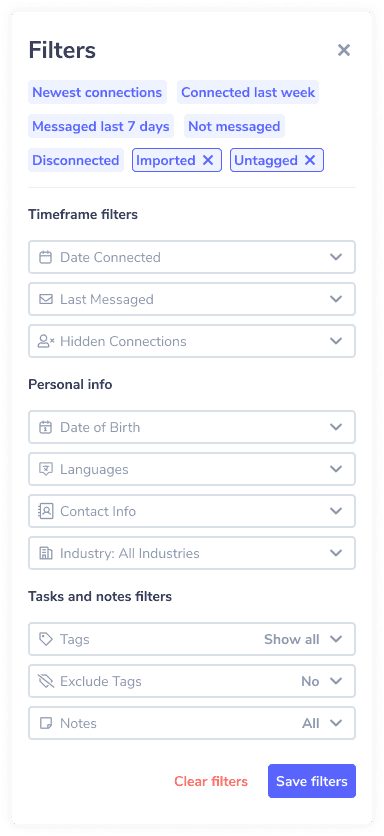
Don’t let your followers get lost in your network after some time. That’s where advanced Filters come into play.
You can filter your whole network for 15+ different datapoints, including Tags, to find exactly who you need.
Collaborate with your team
You’ve now filled your LeadDelta with your or other people’s followers. Organized them and filtered them. What now?
Let’s imagine your marketing team is running a campaign promoting your new resource, and of course, you’d like to notify your network.
Start by letting your team know what tag to look for, as well as who you’d like them to pay attention to.
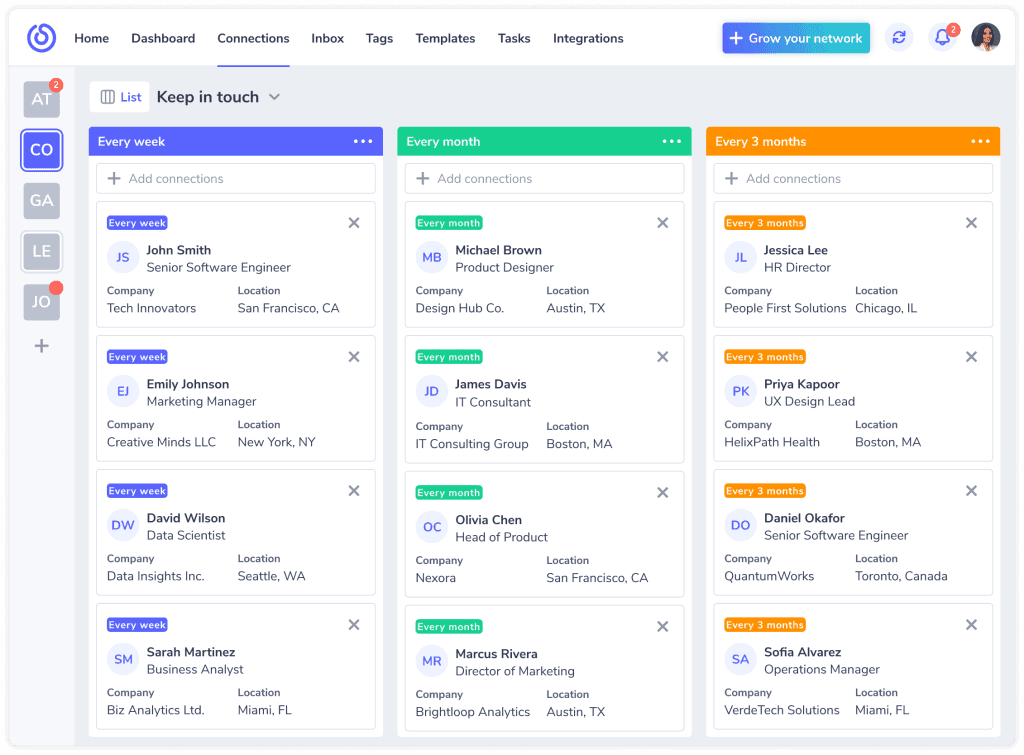
One of the best ways to collaborate with your team on connections is by using the Kanban view for your team workspace.
Simply move contacts through stages, and communicate with your team using Notes and Tasks.
Export LinkedIn Followers
You can easily export your network or integrate LeadDelta with other CRM or Marketing tools you use, using either Zapier or native Hubspot integration.
Frequently Asked Questions (FAQs)
- How do I see who my LinkedIn followers are? You can view your followers by clicking ”My Network” and then selecting ”Followers” from the left-hand menu.
- Can I remove or block unwanted LinkedIn followers? Yes, you can remove or block followers by visiting their profiles and selecting the block option, which prevents them from viewing your content.
- What’s the difference between connections and followers on LinkedIn? Connections are mutual relationships allowing direct messaging, whereas followers can see your public updates without needing approval or mutual connection.
- How can I gain more relevant followers on LinkedIn? Share engaging, industry-specific content consistently, interact frequently with others, and optimize your profile for greater visibility.
- Will my followers know if I remove or block them? LinkedIn does not notify followers if they are blocked or removed.
- Can I set my LinkedIn profile to accept followers instead of connections? Yes, you can adjust your settings under ”Visibility” to make ”Follow” your primary profile action instead of ”Connect.”
- Why is managing my LinkedIn followers important? Managing followers ensures your content reaches relevant professionals, enhances engagement, strengthens your brand, and fosters strategic professional relationships.
- Is there a limit to how many followers I can have on LinkedIn? No, unlike connections, LinkedIn does not impose a follower limit.
- Can followers message me directly on LinkedIn? Typically, followers cannot directly message you unless they’re also connections or have a LinkedIn Premium account to send an InMail.
Conclusion
Having thousands of LinkedIn followers is great for your personal brand and business, but you can take your success to the next level by managing them.
There are hidden gems like new sales opportunities, partners, and connections following you.
It’s on you to discover these gems and pursue them.
LeadDelta gives you the tools to do just that, import, enrich, filter, and manage your LinkedIn followers.