
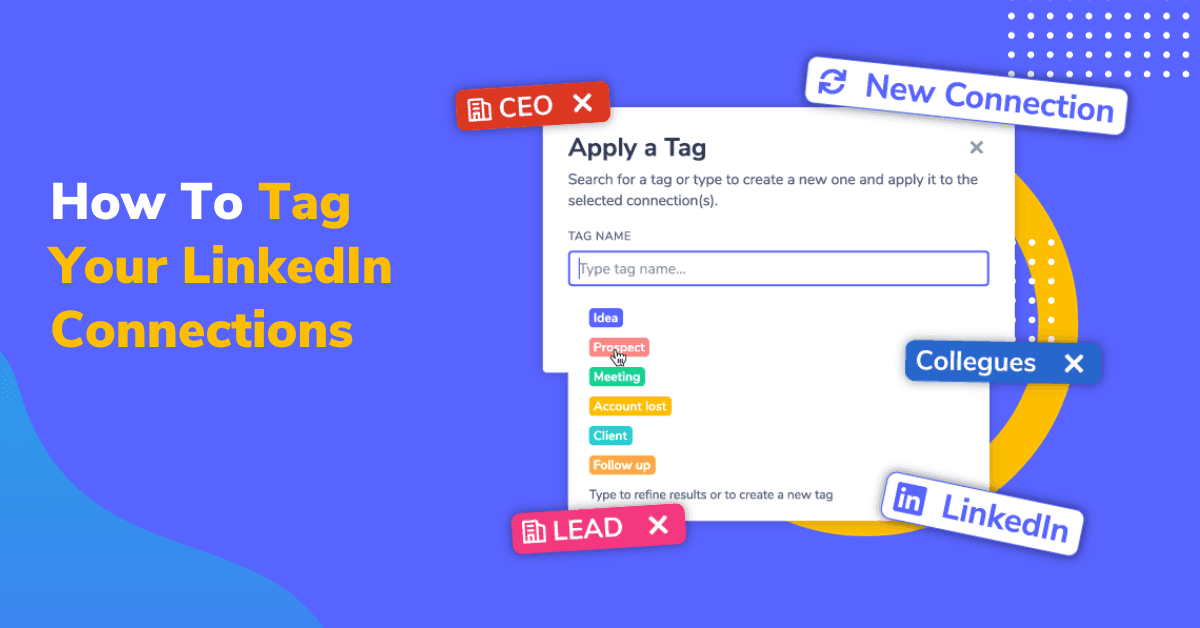
With the ease of connecting with new people, it’s easy to get to 500+ or even thousands of connections in a short period.
But building a huge network of people brings with it a huge problem of needing help to navigate your connections.
In this article, we’re solving the question of how you can organize your network.
Let’s get right into it.
The Problem of Navigating Your Network
It’s all well and good while you connect with people, but the real problem starts when you want to find people in your network.
Take a second and think about your connections.
How many marketers do you have in your network? What industry does John work in? Which creator’s content do I like to engage with?
While you’re trying to distinguish different groups of people you are missing out on networking opportunities and are unable to develop relationships.
You get the idea, with 500+ connections it’s impossible to find your way around your network as it becomes challenging to manage your contacts.
That’s where LeadDelta steps in to help with its Tagging feature!
What Is LinkedIn Tagging In LeadDelta?
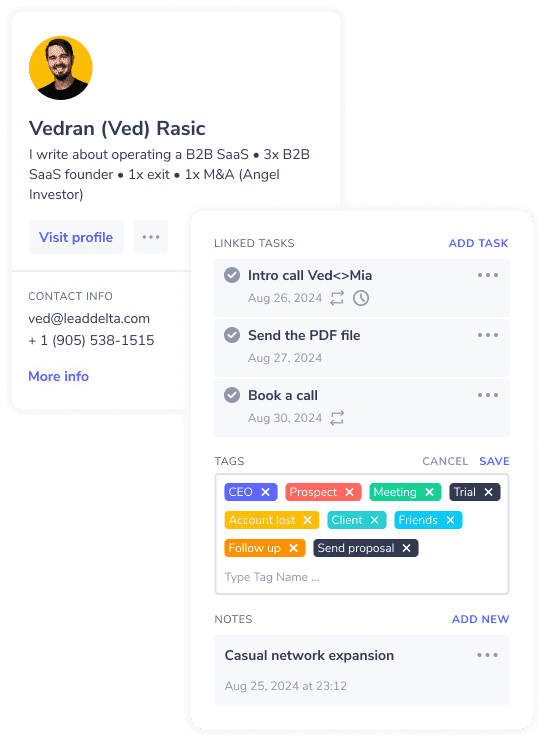
LeadDelta Tags allow you to put custom Tags (Labels) on any one of your connections for better contact management.
Basically, they act like labels.
You can assign them to contacts based on their industry, position in your sales pipeline, if they are friends, colleagues, employees… anything you want.
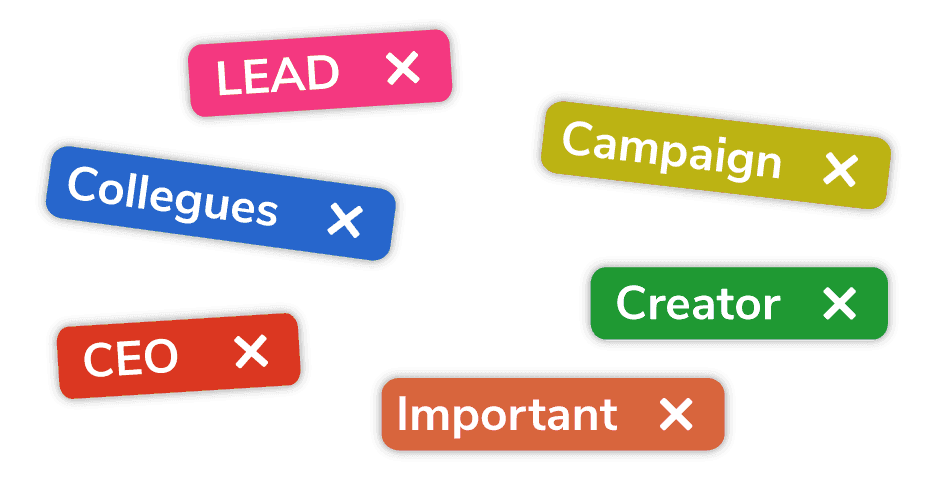
With Tags, you can easily distinguish different groups of people and utilize other LeadDelta features that work together with Tags.
Different Types of Tags in LeadDelta
When first starting to utilize LeadDelta Tags you will notice a couple of different types with you can utilize.
Let’s go over them briefly.
- Auto-Tags
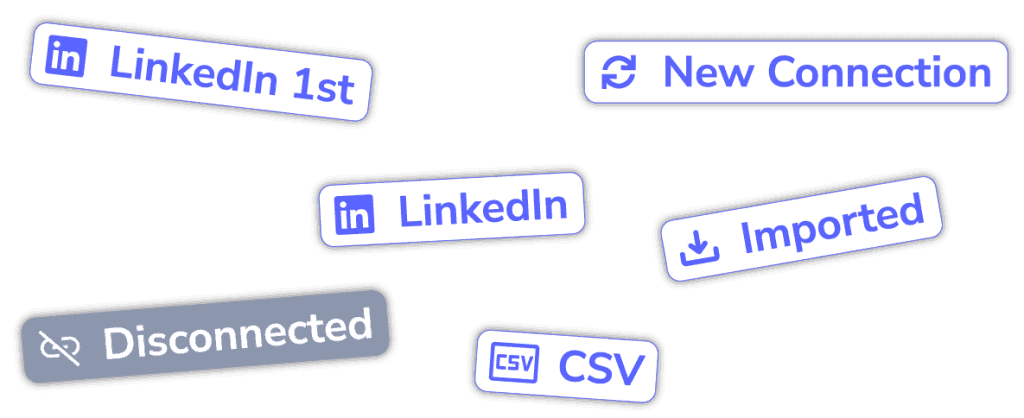
Auto-Tags are a special category of Tags that you can’t apply or remove from connections and are applied automatically based on certain conditions.
- New Connection – Applied to every new LinkedIn connection and is automatically removed after two weeks. They give you insight into everyone you recently connected with.
- LinkedIn – Applied to every LeadDelta contact that originated from LinkedIn.
- LinkedIn 1st – Applied to every one of your LinkedIn 1st-degree connections.
- Imported – Applied to every contact you import into LeadDelta through the LeadDelta Sidebar. Usually reserved for your 2nd, 3rd-degree connections.
- Disconnected – Applied to every contact in LeadDelta that disconnected you on LinkedIn or you disconnected from them but you want to keep their data.
- CSV – Applied to every contact you import through the LeadDelta CSV Import.
These Tags help you distinguish which channels your contacts came from and give you more insights into what is your relationship with them connection-wise.
- Custom Tags
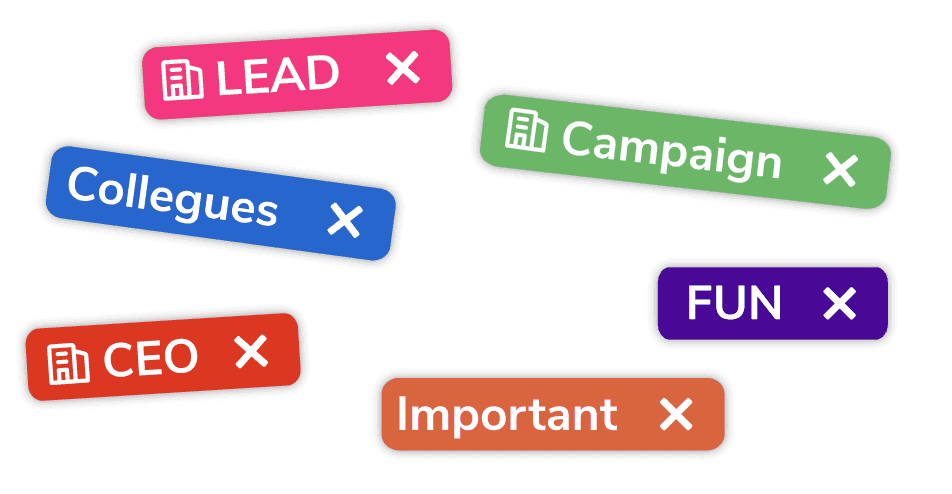
Custom Tags as they sound are completely customizable to your liking and use.
You can have as many of them as you want, name them however you want, apply them to any connection…
- Trigger Tags
Trigger Tags act as a connection between LeadDelta and other software you are using.
They are also custom Tags in nature meaning that you can name them however you want but applying them to a connection triggers an action.
For instance, LeadDelta has a native HubSpot integration and Zapier integrations that allow you to connect LeadDelta with various workflows.
Example: Applying the “HubSpot Sales Workflow” Tag to a connection instantly imports the contact information into HubSpot and begins the assigned workflow.
Now that you understand the three different types of Tags, let’s get into creating your first set of Tags.
How To Create LeadDelta Tags
Creating your own custom Tags is a very simple process.
- Click on the “Tags” tab on the top bar.
- Click the “Add New Tag” button.
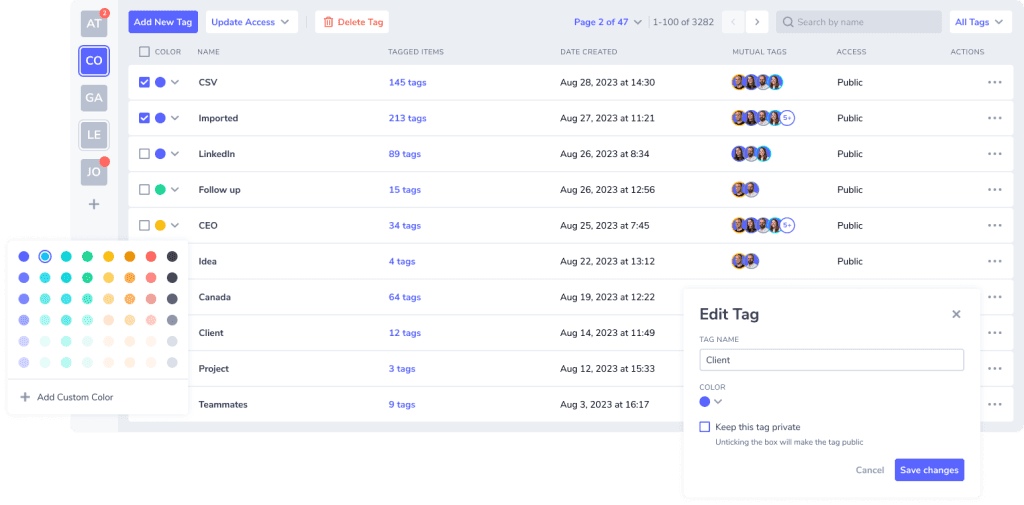
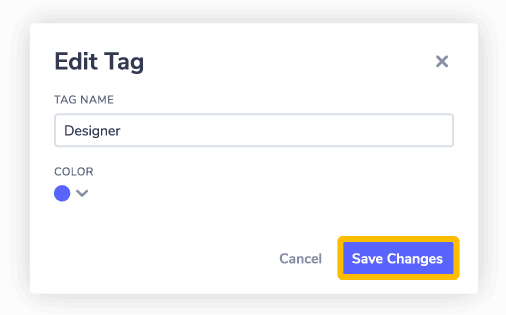
- Input the name of the Tag and select its collor.
- Hit the “Save Changes” button and you’re done.
All of your Tags will be saved in the Tags tab giving you a clear overview of them and how many people are assigned the associated Tag.
If there are any changes you want to make to already existing Tags you can always edit or delete Tags.
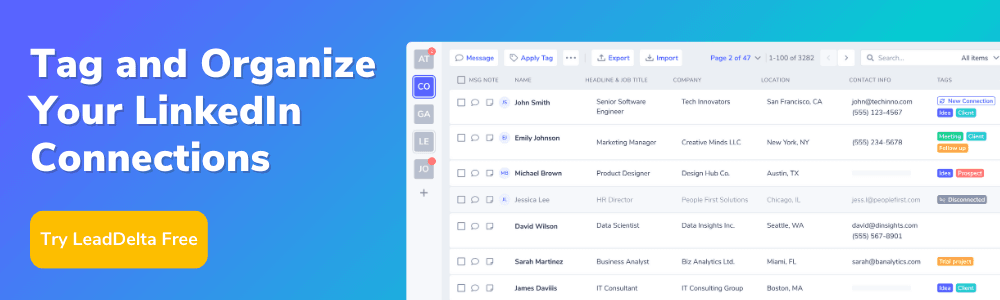
How to Tag LinkedIn Connections With LeadDelta
Once you have your Tags set you can begin applying them to your connections for better network management.
LeadDelta gives you three ways to Tag your LinkedIn connections.
- Connection Tab
While in the connection tab, you can click on the three dots beside any connection and click “Apply Tag” and the Apply Tag window will appear.
Select the appropriate Tag or multiple Tags from the drop-down list and click “Apply Tag”.
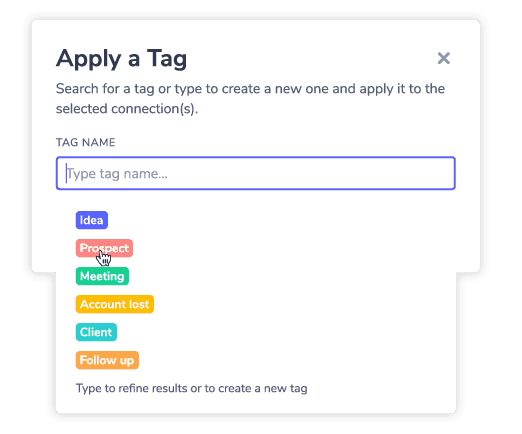
While this is ok if you want to apply a Tag to one connection it’s tedious to go 1-by-1 and apply them to individual connections.
LeadDelta allows you to select multiple connections by clicking on the checkmark box and applying Tags to multiple connections.

- Smart Inbox
While conversing with connections in the LeadDelta Smart Inbox you can apply Tags without having to leave the conversation.
Click the Apply Tag icon right on the conversation and go through the same process as above to apply a Tag to the person.
- Sidebar
While applying Tags inside LeadDelta is easy, you still need to be inside LeadDelta to do so, but what if you want to do it directly from LinkedIn?
The LeadDelta Sidebar allows you to apply Tags while on a connections profile on LinkedIn.
While on someone’s profile, the Sidebar will open on the right side of your window giving you more information about the contact.
If you aren’t connected with them, you can always import them into LeadDelta.
On the bottom of the Sidebar, you can click the “Edit Tags” button and apply a new Tag or any Tags you already have assigned to them.
Maximize LeadDelta Tags to Improve Your Network Management
The obvious benefit of having your connections labeled is that you can easily see who is who while browsing your network.
But Tags allow you to do much more when it comes to network management.
Let’s take a look at two key uses.
Find Who You Are Looking For
LeadDelta already has very advanced filters allowing you to filter your network by 15+ data points and Tags contribute to this greatly.
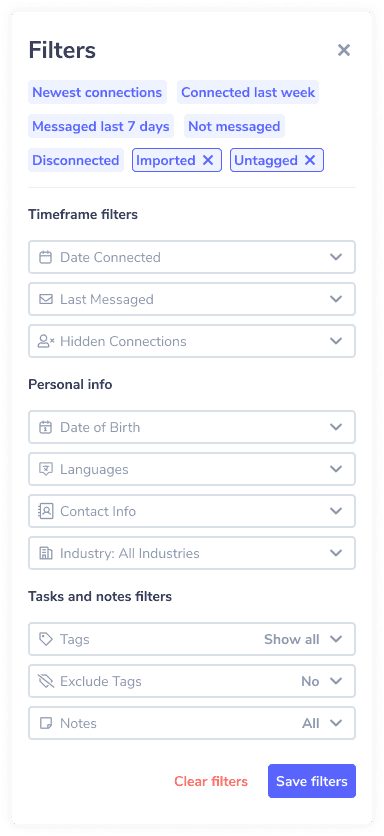
Let’s say you are looking to contact your sales leads.
Instead of filtering your network by industry, when you connect with leads, and their company, filter them by its Tags.
Collaborate With Your Team
Using Tags as a team helps you easily collaborate on various workflows with your whole team’s network combined.
Imagine you’re in the prospecting process with your team and you’re using LinkedIn as your primary source of prospects.
In this process, it’s crucial for your whole team to be on the same page so creating a Tag like “Prospect” would be essential.
Now you can browse LinkedIn and every time you see an interesting person, just import them into LeadDelta with the Sidebar and apply the “Prospect” Tag.
Another one of your teammates tasked with contacting prospects can see the person you just imported and the “Prospect” Tag. This gives them the signal to contact exactly that person.
The more people you have on your team, the more organization you will need, and Tags are a great solution for all the chaos of business processes.
Prioritize and Organize
You can also assign tags based on priority levels, such as High Priority for key contacts or Follow-Up for leads that require further nurturing.
Furthermore, you can set up activity-based Tags, such as Needs Demo, Pending Response, Contract Sent, Engaged, or Needs Attention.
This ensures that you focus your attention on the most important relationships.
Personalize Communication
Tags can help you tailor your messages. For example, if you met several contacts at a particular event, tagging them with the event name allows you to reference it in your follow-ups, making your outreach more personal and relevant.
Track Campaigns
If you’re running marketing campaigns, Tags can help you differentiate them.
Use Tags such as: Webinar, Affiliate, Cold Outreach, Referral, Ebook…
After this, create a template and send promotional messages to these contacts using LeadDelta Smart Inbox.
Conclusion
Having a huge LinkedIn network is great, but if you aren’t able to manage it well it won’t do you any good.
One of the easiest ways to keep everything organized is by labeling your connections with a tool like LeadDelta.
It makes it easy for you and your team to distinguish different connections and keep your networks organized.