
How many times did you want to view someone’s profile, but you didn’t want them to know it?
There’s an easy way to secretly view LinkedIn profiles – LinkedIn Private Mode.
In this article, you will learn everything about the LinkedIn private mode and when you should use it.
Let’s get into it.
What is Private Mode on LinkedIn
LinkedIn Private Mode is a LinkedIn feature that allows users to stay anonymous while viewing other users’ profiles.
By default, when you view someone’s profile, they will get notified about it in their profile views analytics.
But, if they had private mode turned on, you wouldn’t be able to see who viewed your profile.
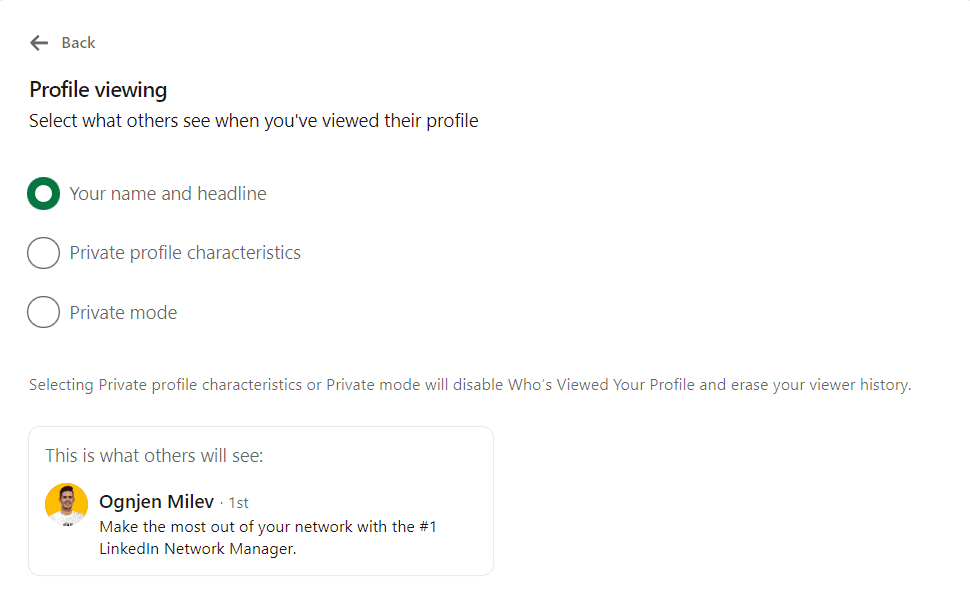
Profile settings allow you to control which information they can see when you visit their profile:
- Your name and headline which shows them your picture, headline, and industry…
- Private profile characteristics which shows vague profile information (name of your company).
- Private mode that doesn’t show any profile information.
Turning your profile private doesn’t mean nobody can see your profile information. This is accomplished by hiding your LinkedIn profile.
What it does mean is that you will be able to view someone’s LinkedIn profile without them knowing letting you be invisible.
Now let’s get your profile private.
How to Turn On LinkedIn Private Mode
LinkedIn Private Mode is available to all LinkedIn users on both desktop and mobile devices and is easily accessible.
Here’s how to activate it on your profile:
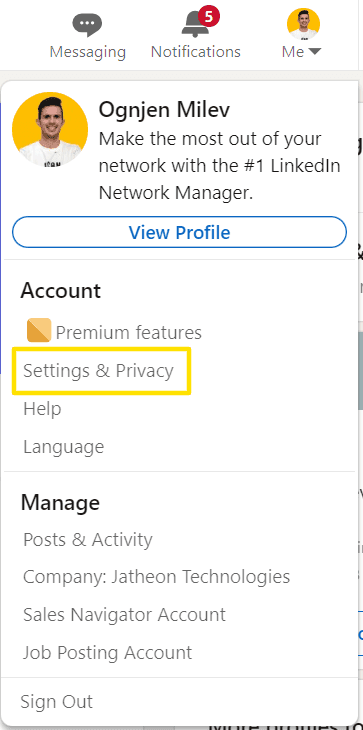
- Click on your profile picture and click on “Settings & Privacy” under “Account”.
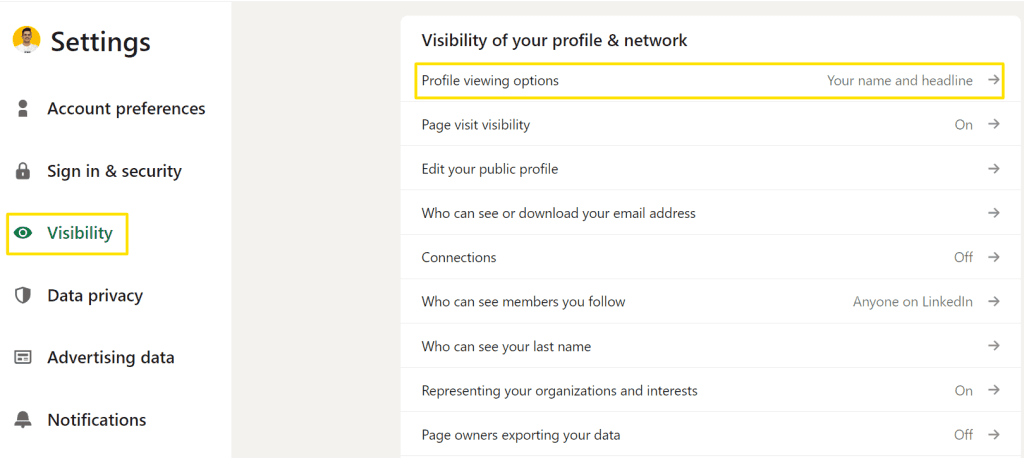
- Under “Visibility”, click on “Profile viewing options”.
- Choose the “Private mode” option out of the 3 given options.
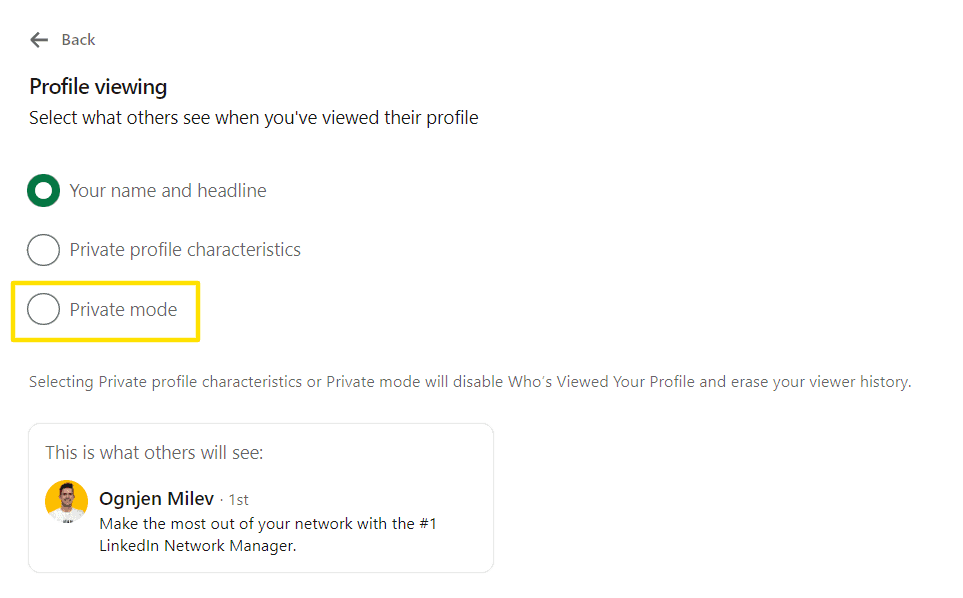
To turn off private mode, you would repeat the whole process until the third step and click on the “Your name and headline” option.
Is LinkedIn Private Mode Available For Non-premium Users?
Both premium and regular LinkedIn users can access private mode with the non-premium users having some limitations.
Those with premium LinkedIn profiles can browse in private mode and see who is browsing their profiles, while free users can’t do that.
It’s a big selling point for getting a premium profile.
But even premium users can’t see who viewed their profile if that person has private mode turned on.
When Should You Use LinkedIn Private Mode?
In most cases, you don’t want to keep your profile private as you may want to show people you are interested in them.
And by keeping it non-private you can see who is viewing your profile.
But there are also situations where it is better to turn your profile private.
Here are 4 ways to use LinkedIn private mode to your advantage:
1. You Are Looking At Potential Candidates
If you are a recruiter, LinkedIn is one of your most crucial tools for finding and managing new employees.
You should be using LinkedIn’s private mode at the start of your recruiting process.
When someone applies to your job post or if you find an interesting candidate, having private mode allows you to check their profile information and compatibility with the job requirements without them knowing it.
After you have a comprehensive list of candidates, you can switch back to public mode and send them an invitation request.
Taking it a step further, you can use the LeadDelta Sidebar to import the potential candidates into LeadDelta and manage them with Tags without being directly connected.

Using these LinkedIn recruitment tips can help boost your outreach success.
2. Research Competitors Without Them Knowing
Analyzing how your competitors are doing on LinkedIn can give you many insights into what you can do better.
Whether you are analyzing company employees or individual users, if they see who you are they might get an idea of what you are doing.
By using the private mode, you can stay one step ahead of the competition by analyzing them without them knowing it.
And by seeing their moves, you might get inspiration on how to outperform them.
3. Growing Your Network
The private mode is a great way of getting started with your LinkedIn networking activities.
Let’s face it, your profile might not be perfect and you usually want to research who you want to connect with.
Keeping your profile private will allow you to create a list of people you want to connect with and keep them for the right moment.
We recommend you use LeadDelta Sidebar for this.
After you find people you believe you know, or if they work in your industry, you can make your profile public to visit their profiles, so they get a notification and potentially visit yours back.
With all the information you acquired about them, it’s just a matter of sending a personalized message and connecting.
4. Generating Lead Lists
If you are using LinkedIn as your primary sales tool then you know how important researching your leads is.
But also, you don’t want them to see you entering their profile multiple times as they will know you are looking to pitch them as soon as they view your profile.
Turing private mode will let you gather information and create lead lists without them knowing it.
After you get a list of leads and you’re ready, to begin with, your LinkedIn outreach activities, you can turn it off and initiate the conversation through the connection request message.
Here’s what’s great about using this strategy for your lead generation:
- It’s personalized – By mentioning something specific about your prospect, they will be more likely to start a conversation with you even though they haven’t seen you visiting their profile.
- It’s anonymous – By doing this, you won’t look like a stalker who visited prospects’ profiles thousands of times, but only once before contacting them.
How to Maintain Privacy on LinkedIn
Maintaining privacy on LinkedIn goes beyond just using Private Mode. Here are some additional tips to ensure your LinkedIn activity remains discreet:
- Control Profile Visibility: Use LinkedIn settings to control what parts of your profile are visible to others.
- Limit Activity Broadcasts: Turn off activity broadcasts to ensure your network isn’t notified about every change you make on your profile.
- Manage Connections Wisely: Be selective with your connections. Only connect with people you trust and who contribute positively to your professional network.
FAQ
Can someone know if I viewed their profile in private mode?
No, if you view someone’s profile in private mode, they will not be able to see that you have viewed their profile.
Will I still get profile view notifications if I am in private mode?
If you are a premium user, you can still see who viewed your profile even in private mode. Free users will not have access to this feature.
How do I switch back from private mode to public?
To switch back from private mode to public, go to “Settings & Privacy” under your profile, click on “Visibility”, then “Profile viewing options”, and select “Your name and headline”.
Is LinkedIn private mode available on mobile devices?
Yes, LinkedIn private mode is available on both desktop and mobile devices.
Can I hide my LinkedIn profile completely?
Yes, you can hide your LinkedIn profile completely by adjusting your privacy settings to limit who can see your profile information.
Conclusion
Using LinkedIn’s private mode has many benefits when you want to view LinkedIn in private without anyone knowing it.
Combine private mode with LeadDelta and you can view profiles and manage them without being connected.
You will be able to create lead lists, talent pipelines, and potential connection lists easily and use them when the moment is right.